Pleasant Packages: Automatic Tasks
Is there a something you want R to repeatedly do? Set up a task that will automatically be run by R! (Only for Windows, unfortunately)
Friday, Oct 23, 2020 By Hope Snyder.
The taskscheduleR package allows you to set up “tasks” to run automatically on your PC. These tasks can be any R code that you need to repeatedly compute. It doesn’t even have to be a necessity, it could be just because you want to! For example, you want to know exactly what time you start working every morning. You can set up a script that will log the time when you log on to your computer. Or once a month, you can update a record of the number of kitten adoptions at your local animal shelter. They are both achievable with taskscheduleR! Tasks being done on their own; is there a better example of real life magic?

Let’s Make Some Magic!
First, this package only works on Windows machines, unfortunately. There is a way to set up automatic tasks on Mac and Linux through another package. However, I primarily work on Windows so I am most familiar with the taskscheduleR package.
In order to set up a task for your computer to run automatically, make sure you are signed in as an administrator for your machine. The taskscheduleR package communicates with the Windows Task Scheduler to run the tasks and that requires administrator access. Then, install and load the package:
install.packages("taskscheduleR")
library(taskscheduleR)
Now, you can write a code file, or an “Rscript” as the package refers to them, to be run to complete the task. This file can be a regular .R file or .txt file. It can contain whatever code you want to be run at a specific time or repeatedly. As with many things in R, you are limited if you haven’t learned it yet!
The next question you have to answer is “When do you want this code to run and how often?” The package includes many options for this. You could choose to run your automated task by minutes, hours, days, weeks, or months. Also, when you log in to your computer or when the computer goes idle. There is even an option for just one time. Check out the vignette for the package for the exact syntax for each option. More options are available by using the modifier argument.
The last thing to worry about is where the output of the code ends up. By default the output of the code is saved in a text file in the location of the Rscript. This text file is updated with the new results each time the code is run. This would be another great reason to create a project that holds all of your automated tasks and their outputs (Need help with setting up an R project? Look here!)!
Let the Computer Do Magic
Now I will talk through an example of a simple task that will pick ten random values between 1 and 100. This task will only run once (since you probably don’t want ten new numbers every few minutes), however there is a function that will run the task again, should you want to.
First thing to do is set up the Rscript file that you would like to run automatically. It might be best to save this in a separate folder for each task you set up.
nums <- sample(100, 10)

print(nums)
Next, you have technically have two options. Option 1) You could create a file for setting up your tasks. This would include a few lines of code as shown below:
taskscheduler_create(taskname = "test_run",
                     rscript = "C:/full/path/to/the/task/rscript.R",
                     schedule = "ONCE"
                     starttime = format(Sys.time() + 50, "%H:%M"))
The starttime argument is optional. It gives a bit of a delay so you might notice when the task is executed. A window that seems like a command line window will appear momentarily. If you see that, it indicates that the task has run. The log should appear in the file with the Rscript used for the task. If it doesn’t, make sure you used the full path to the task file. I believe it must be the full path to the Rscript otherwise the task does not run, even if there is an indication that the task was executed.
If you are setting the task to be reoccurring, you can use the modifier argument to have more control over when the task is run. For example, if you want something done on a biweekly basis, the schedule = "WEEKLY" and the modifier = 2.
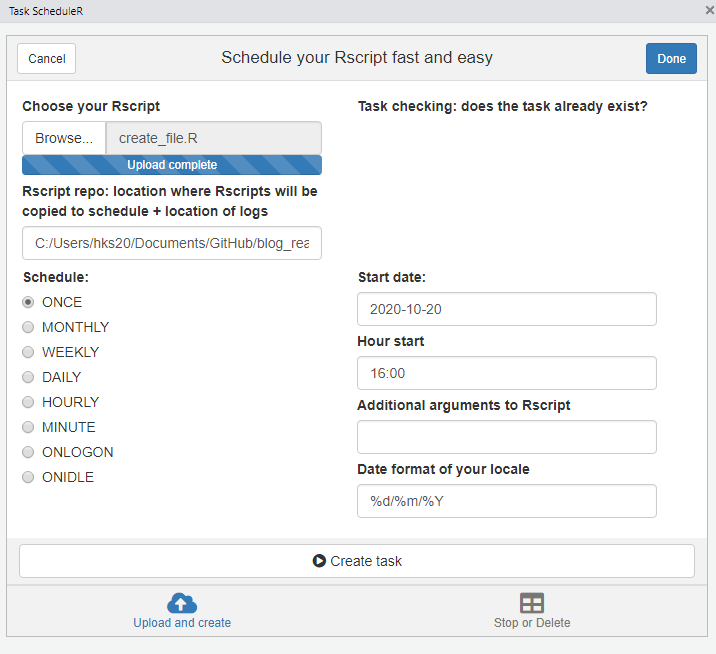
Or, if you are working in RStudio, you could do Option 2) Use the Addin feature to help you set up tasks. This will open a window where you can find your Rscript, set the location where the log will be recorded, as well as designate how often the script is run and when the task will start. Once you fill in those arguments, click on the “Create task” button at the bottom to schedule your automated task.
Below is a few other functions that will help you when testing and trouble shooting your task and the automation.
# Run the task again immediately
taskscheduler_runnow(taskname = "test_run")

# This will list out all of the tasks in Windows manager.  You might need to filter by the "TaskName" in order to see your task.
taskscheduler_ls()

# Remove the task from the list.  It will not be run anymore until the task is recreated.
taskscheduler_delete(taskname = "test_run")